Phone
RealmTerraiN
The phone for a realm. Directory, messages, and files from the computer on your Wi‑Fi. It is not a substitute for installing RealmTerraiN on the PC.
For the phone
These four are phone apps. Their names on the phone are RealmTerraiN, RealmTerraiN Authenticator, RealmTerraiN Badge, and RealmTerraiN Hotspot. The store listings are not open yet, so this page does not hand you an install file.
Phone
The phone for a realm. Directory, messages, and files from the computer on your Wi‑Fi. It is not a substitute for installing RealmTerraiN on the PC.
Phone
Six-digit codes for RealmTerraiN Admin. Scan the admin QR once. After that it works with no internet. Codes stay on the phone.
Phone
Admit a walk-up device. You keep a badge key from Admin, then scan the tag or QR on the same Wi‑Fi as the realm computer.
Phone
For a guest door. Scan or paste the door link, check the six mark words, and open the directory in the browser. It does not phone home.
How to install
Search the store for the full name, including the capital N in TerraiN. Do not sideload a file from this website.
Privacy policies, ready for the store forms: Authenticator, Badge, Hotspot.
Inside RealmTerraiN
These are the apps on the realm. Open a card to see it.
 DocumentsWrite, calculate, present, and sign a PDF on the home PC.
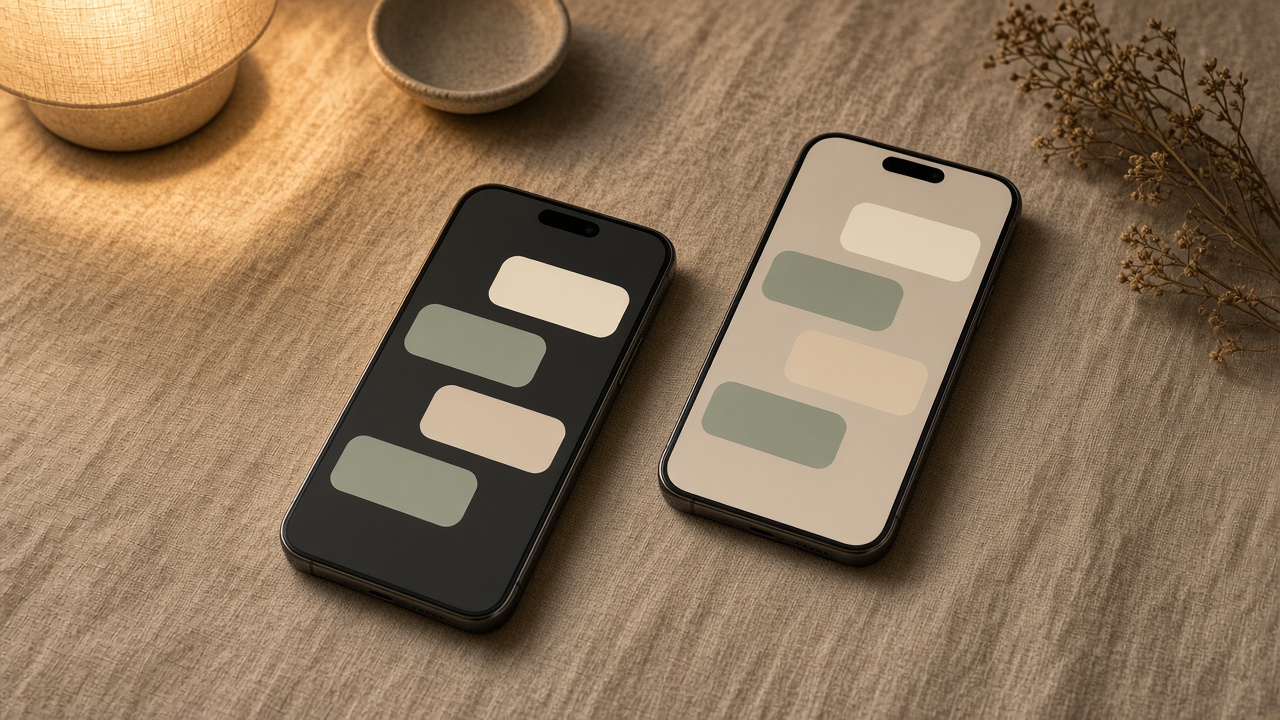 MessagingMessage someone admitted, on the same Wi‑Fi as the home PC.
 MailWrite to someone admitted. The inbox stays on the PC.
 TasksBoards and cards for the house, without a project website.
 CalendarPlan the day, repeat it, and share it with the house.
 WhiteboardDraw and stick notes for a meeting. The board stays at home.
 ContactsThe household phone book. Import it, then leave it on the PC.
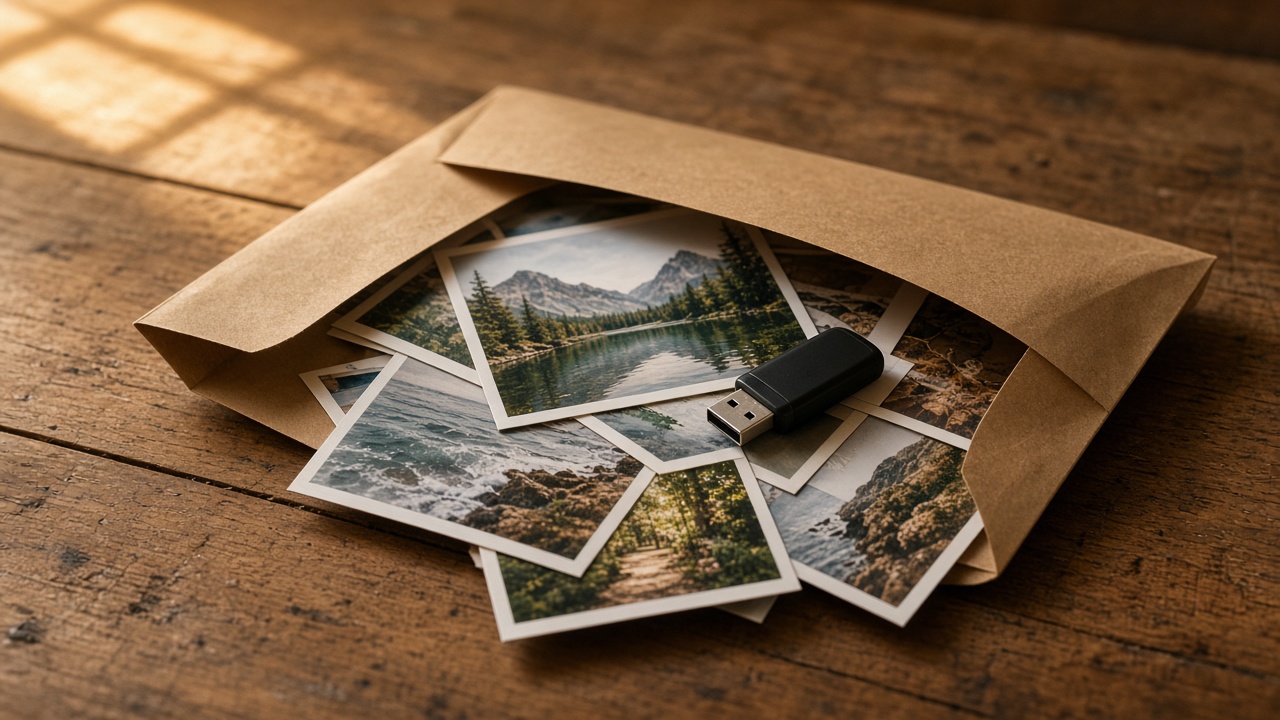 File DropDrop a file on the PC. Someone admitted pulls it from there.
 Family WallShoutouts, birthdays, and photos the house can see.
 RecipesWrite the recipe and set what is for tonight.
 FormsBuild a sign-up or RSVP. Answers come back to the PC.
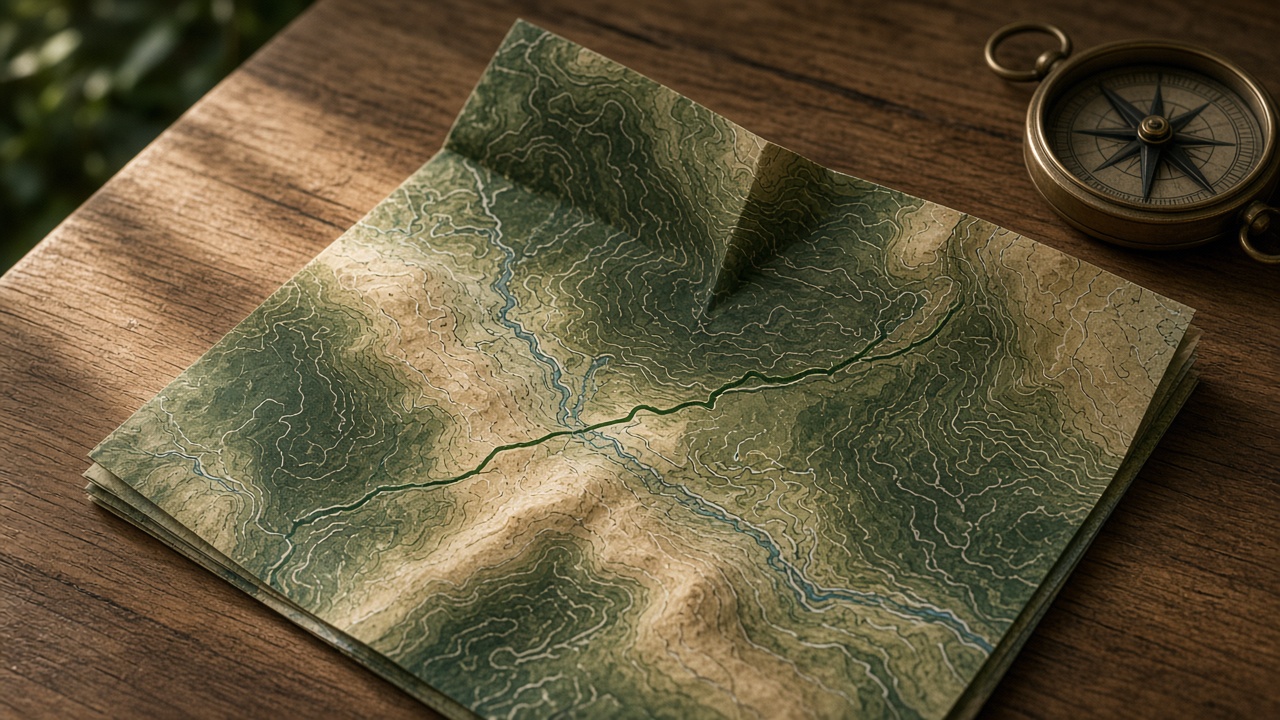 MapsSearch, directions, and what is nearby, from maps on the realm.
 GamesChess, checkers, Scrabble, and the arcade. No game store.
 RealTubeWatch and post video on the realm, not on a public feed.
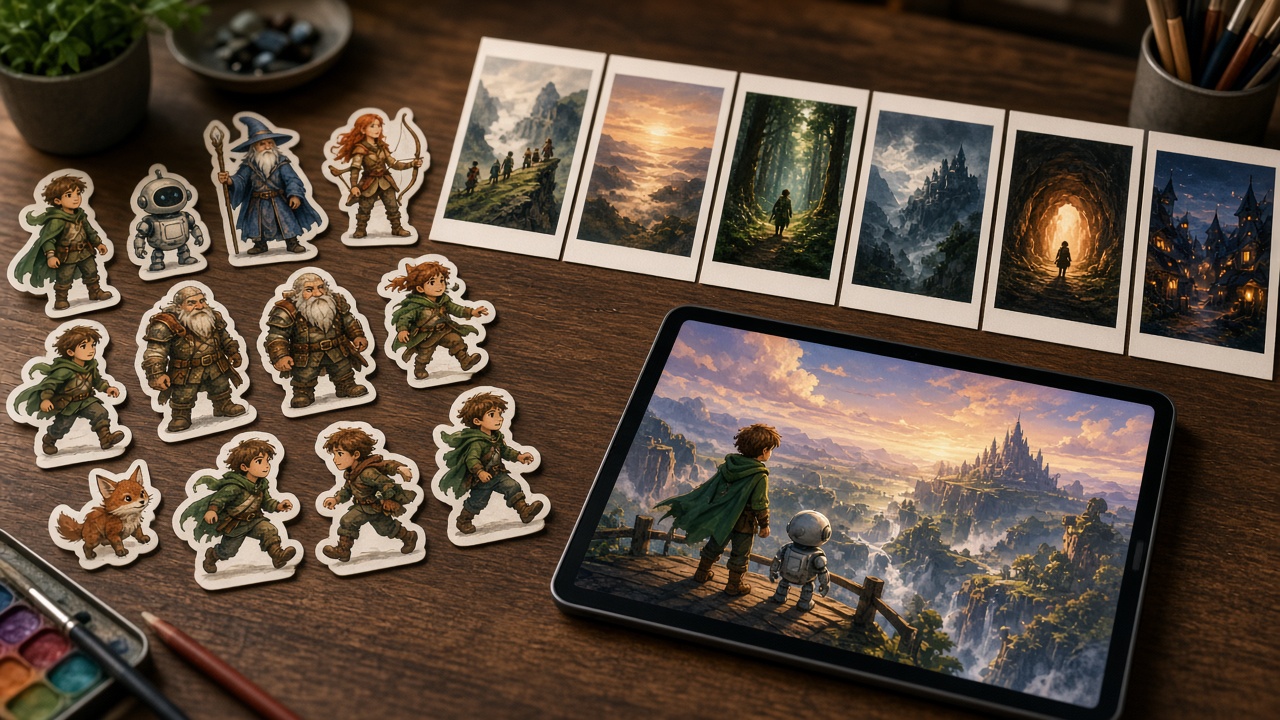 Story StudioBuild a course or a scenario people play on the realm.
 Music StudioRecord, mix, and export a song onto the home PC.
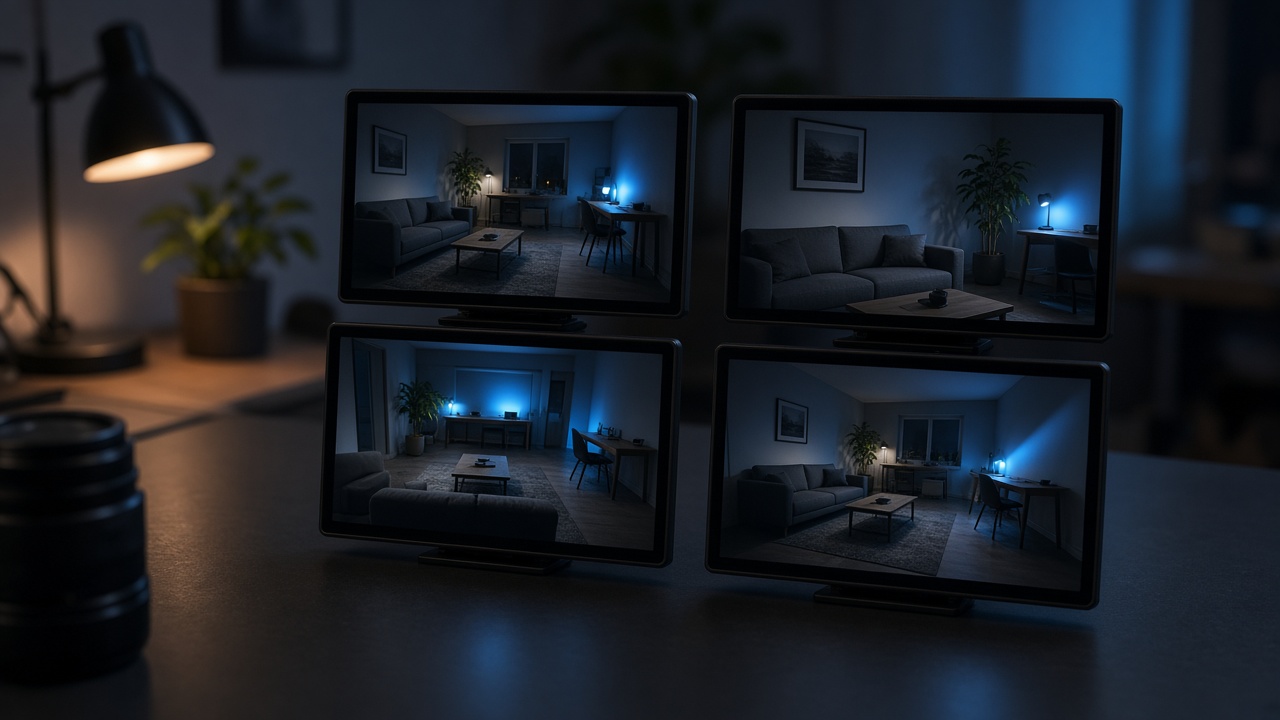 MulticamSwitch cameras and scenes on the home PC.
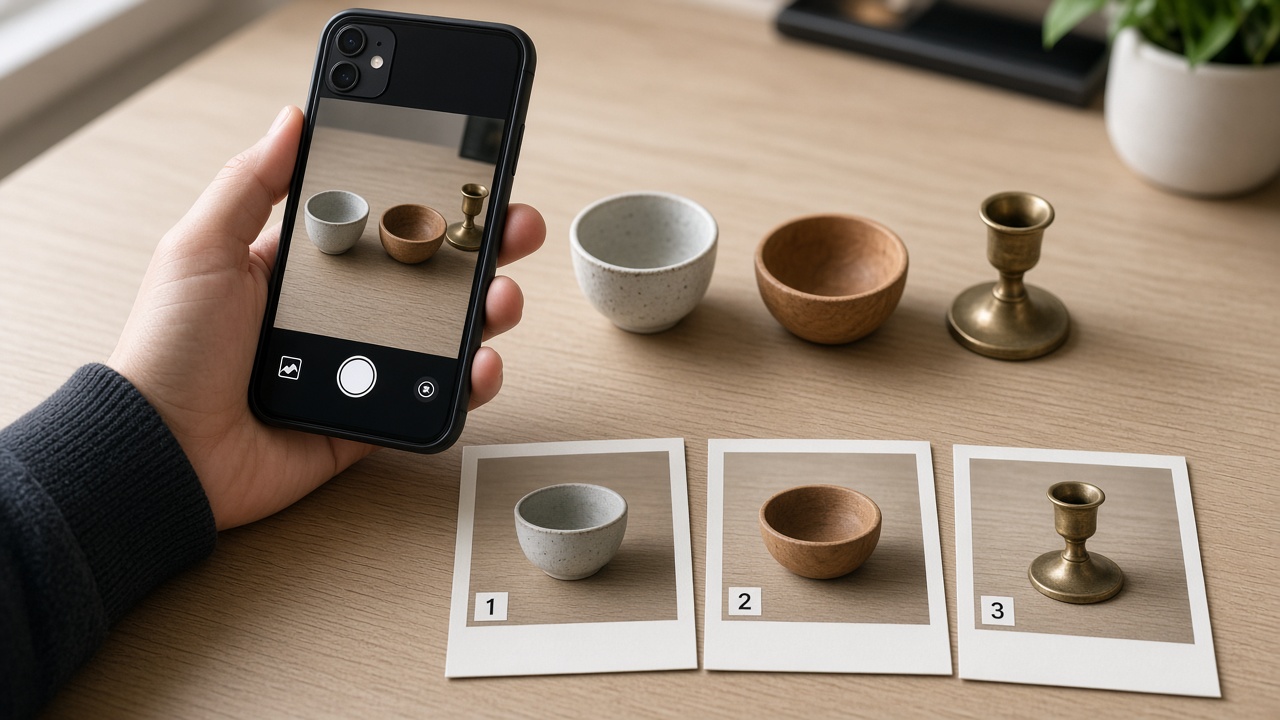 Steps RecorderRecord each click, or mark up one shot. Saved on the PC.
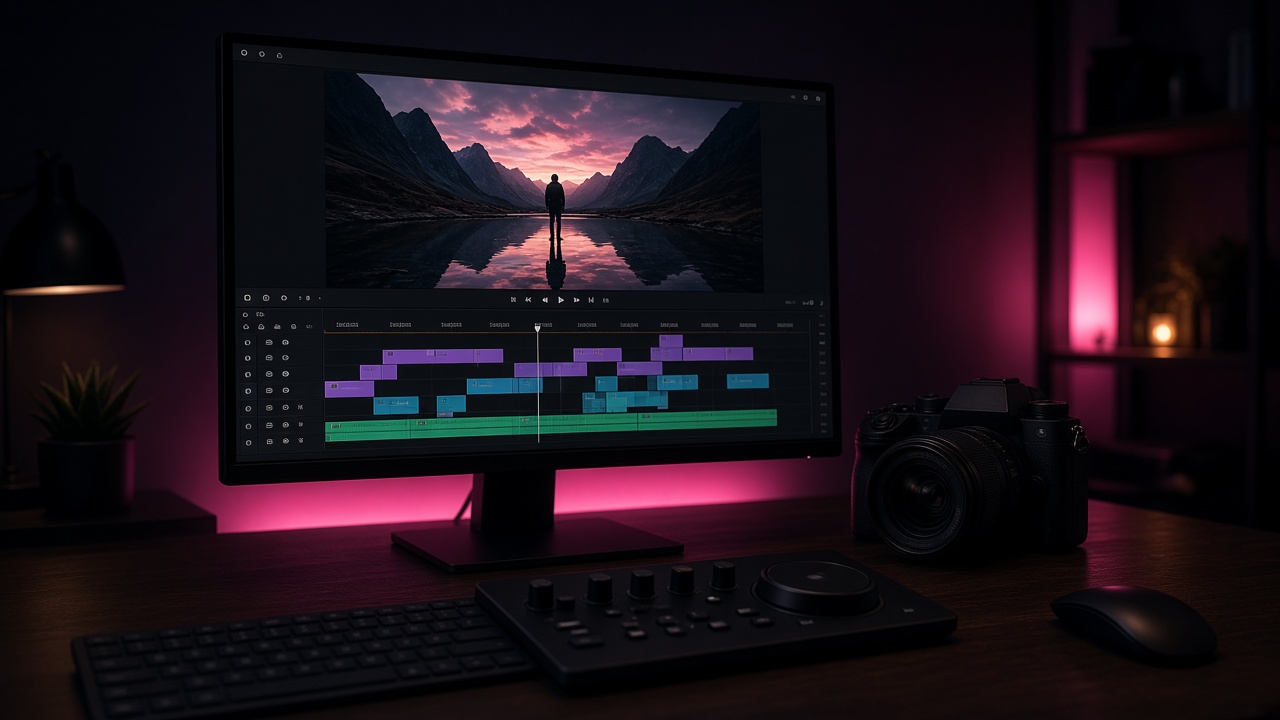 Video editorCut, caption, and export a clip. The file stays on the PC.
 TranslateType in one language. Read it in another, on this computer.
 BuildMake a page or a game and publish it on the Directory.